Create Posters and Product Visuals
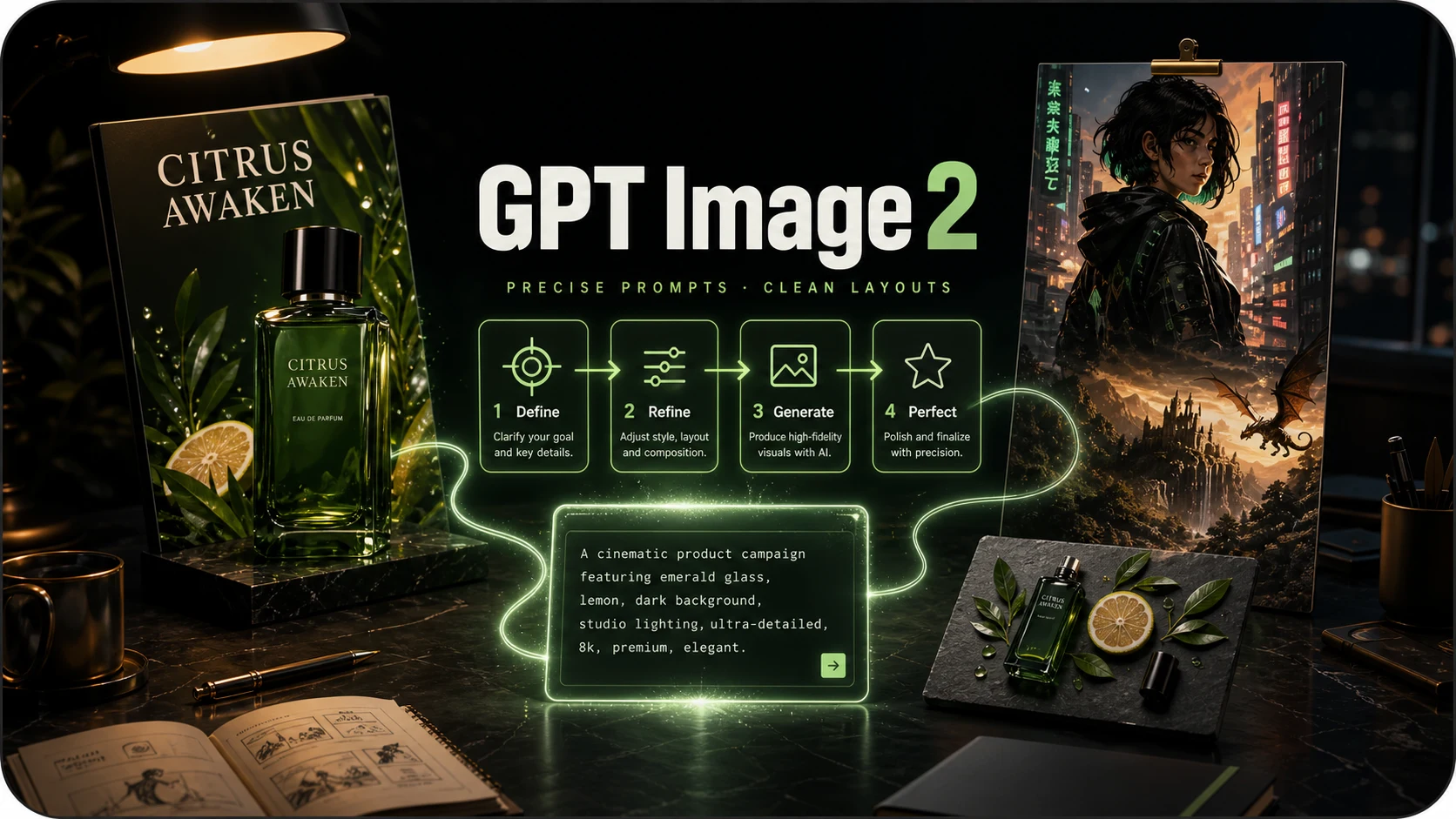
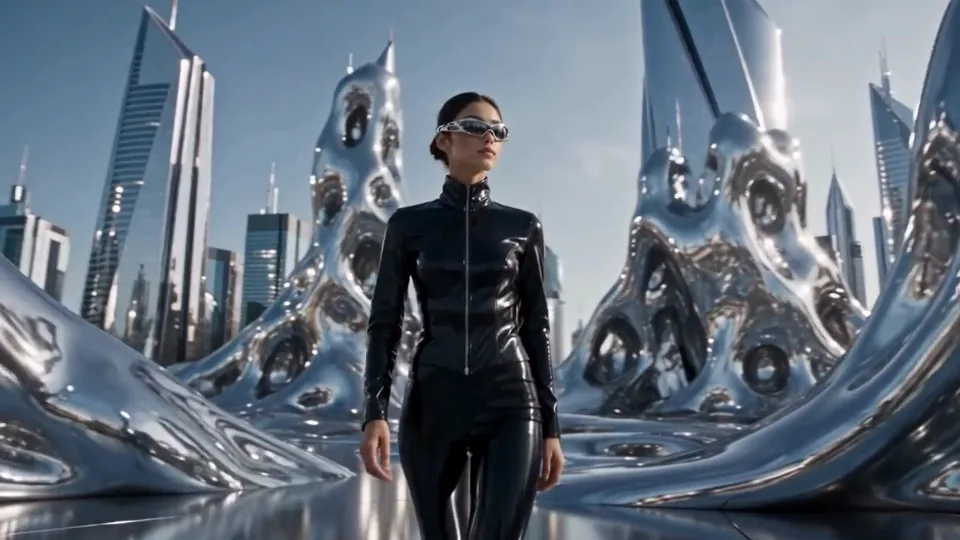
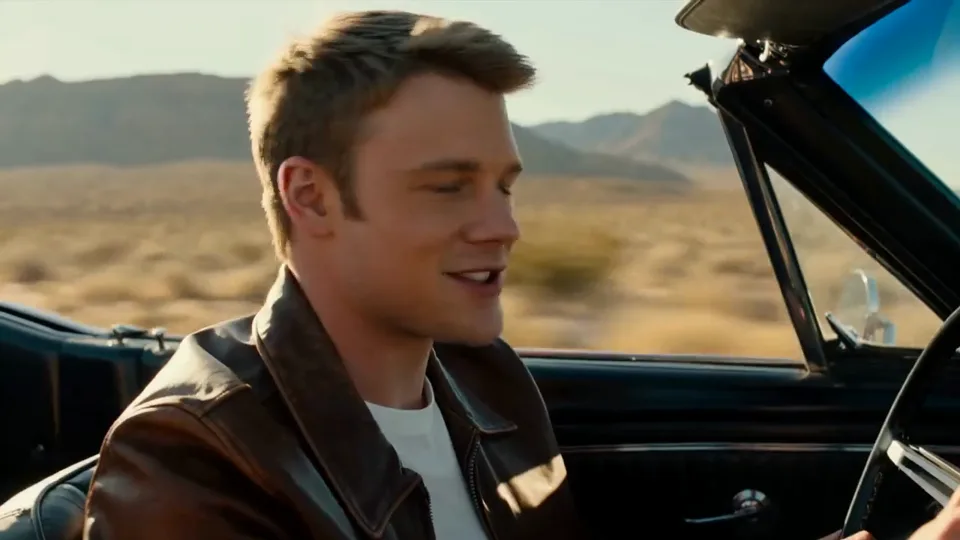
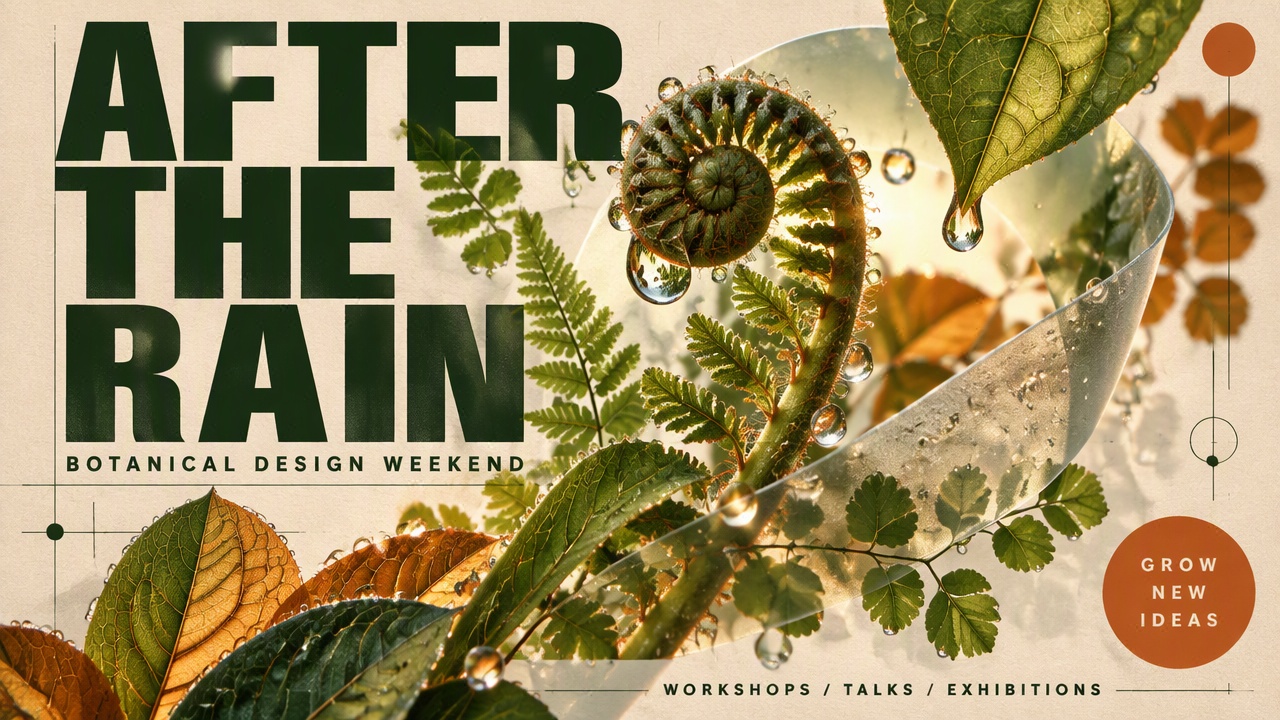
Describe your subject, setting, and layout to create campaign posters, product scenes, and social graphics. Explore different compositions, lighting, and styles to find a direction for your project.

Create product images, posters, and brand visuals from text or reference images. Refine specific details and explore new directions with GPT Image 2.6.
GPT Image 2.6 is OpenAI’s image generation and editing model family. Create a new image from a description, work from reference images, or refine an existing design. Its capabilities include markup-guided edits, transparent backgrounds, SVG graphics, and looping GIFs.
Describe your subject, setting, and layout to create campaign posters, product scenes, and social graphics. Explore different compositions, lighting, and styles to find a direction for your project.
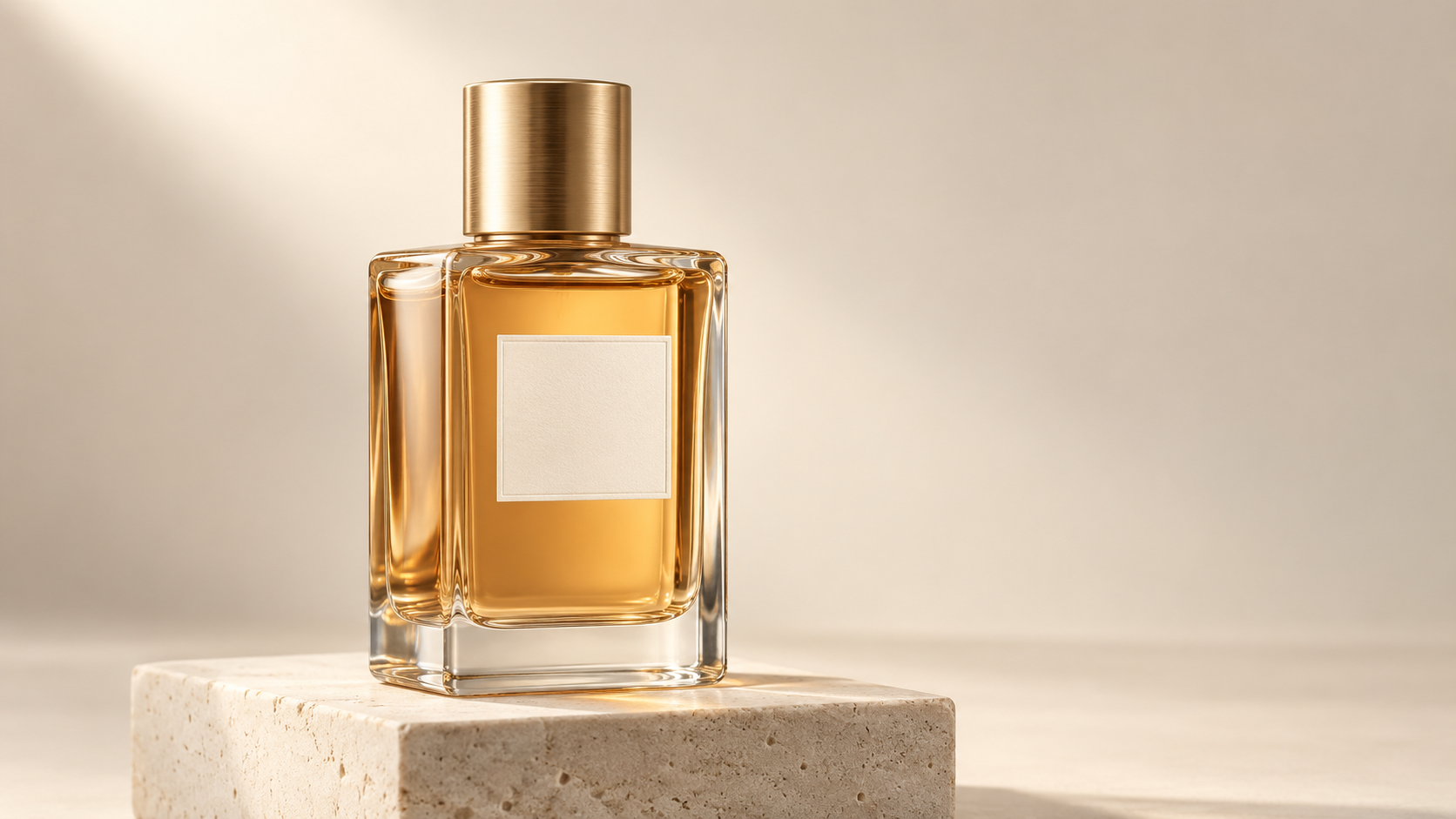
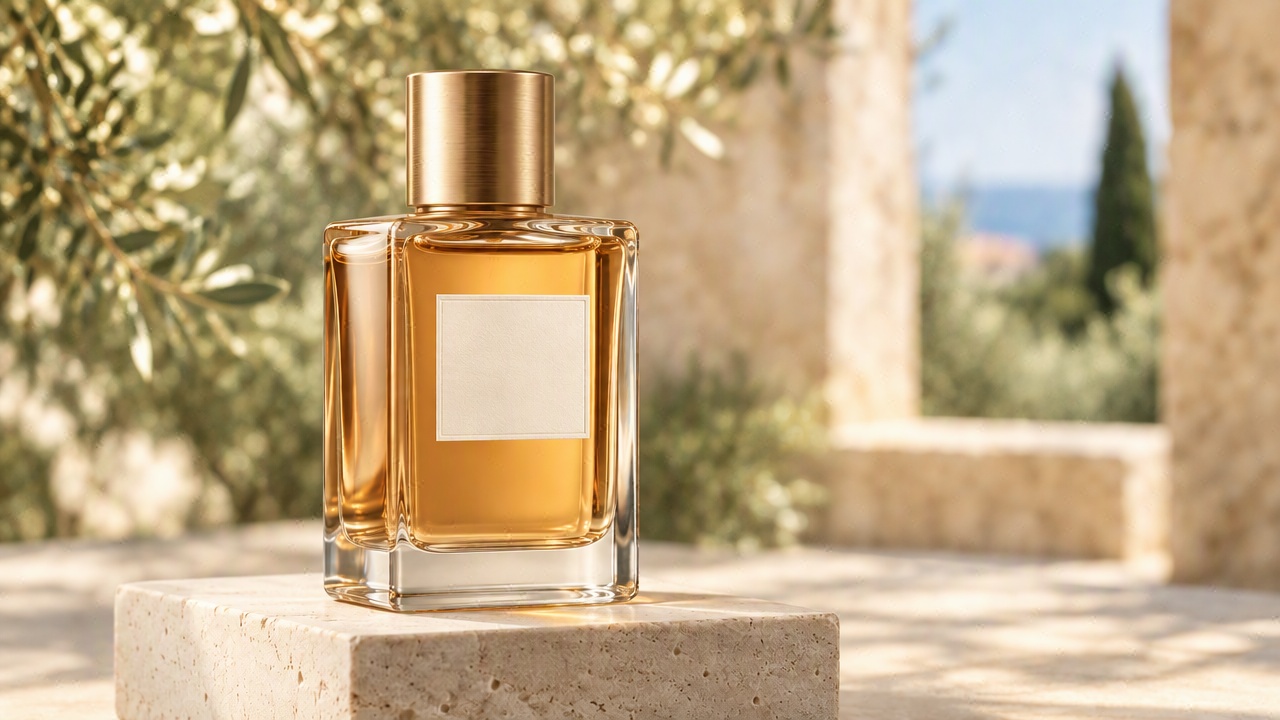
Mark the area you want to change and describe the adjustment. Update a sign, change an object’s color, or revise a background with a precise visual instruction.
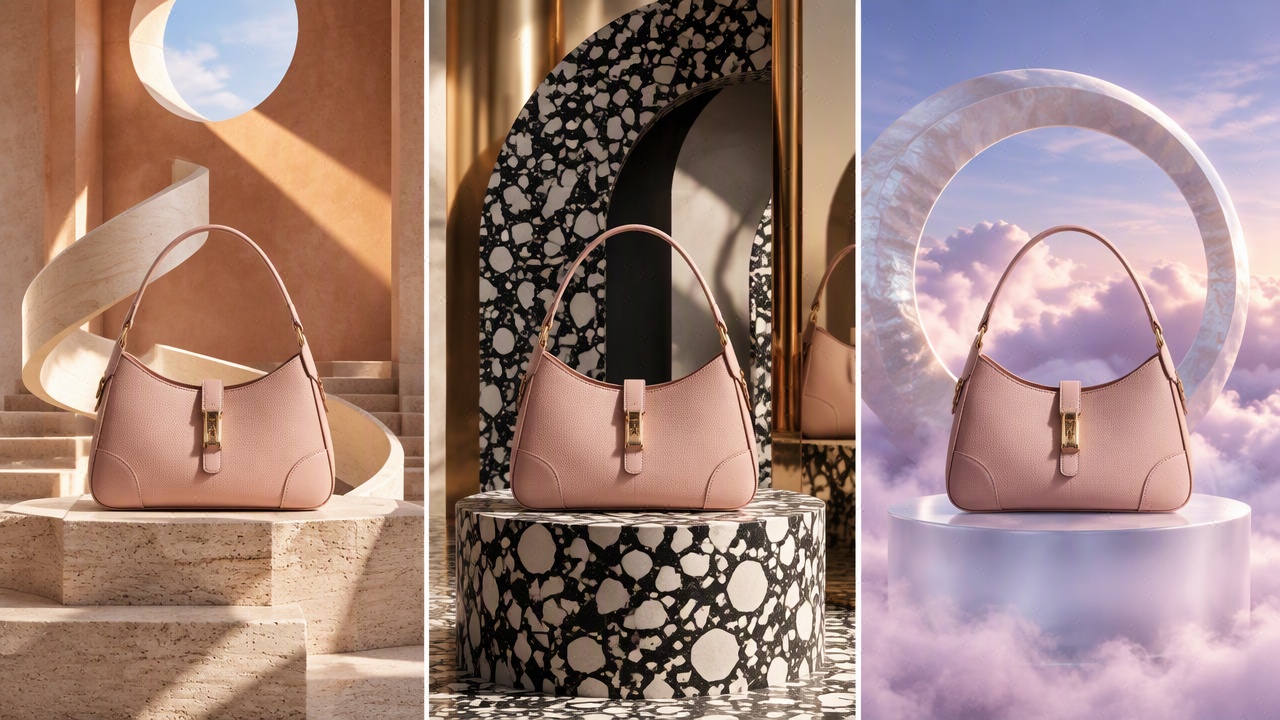
Build on an existing image through successive edits. Refine the setting, composition, or styling while carrying product features and brand details into the next version.
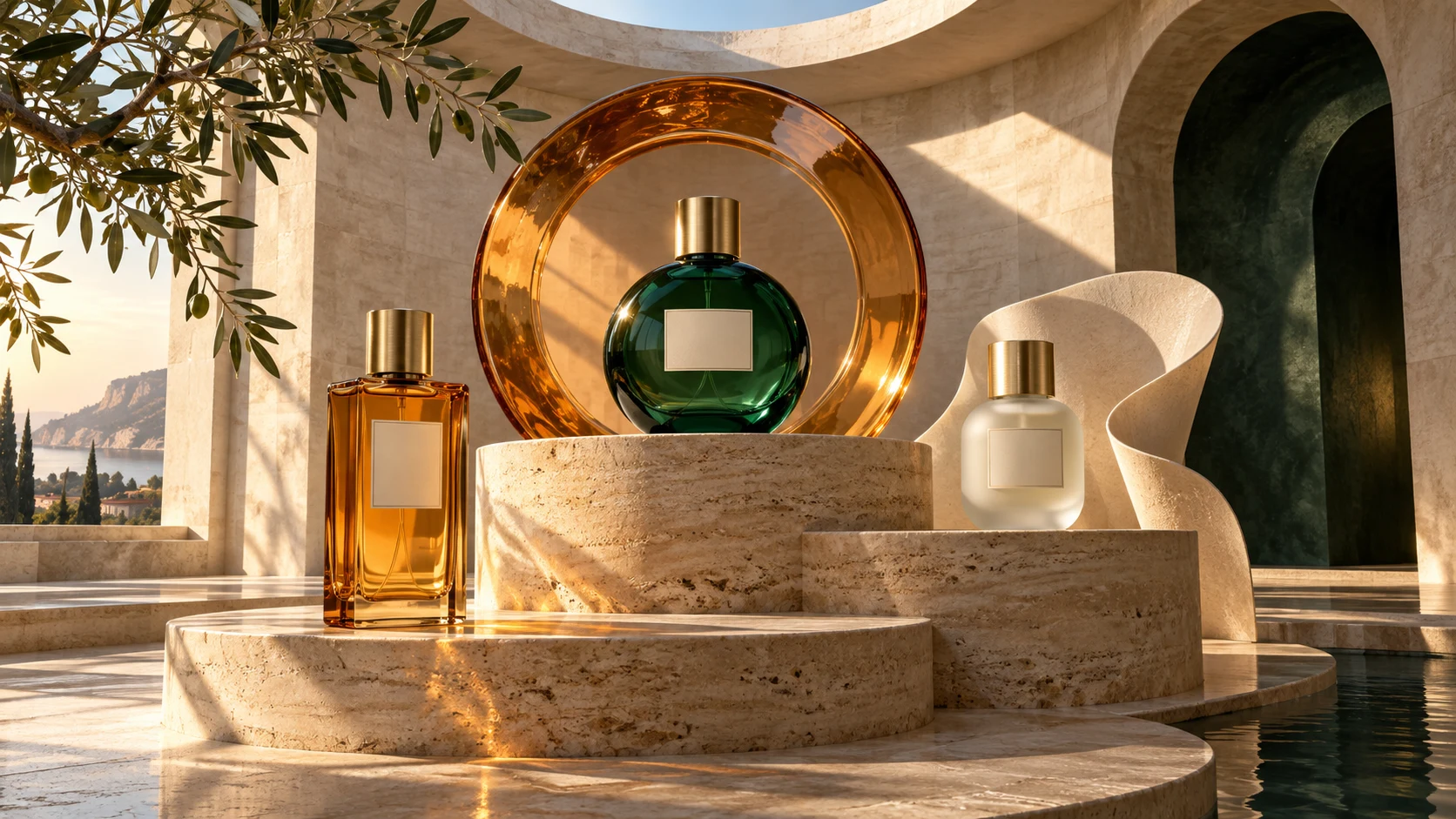
Adjust complexity to suit the task, from a focused change to a composition with several objects and layout requirements. Choose image quality separately to control visual detail and fidelity.
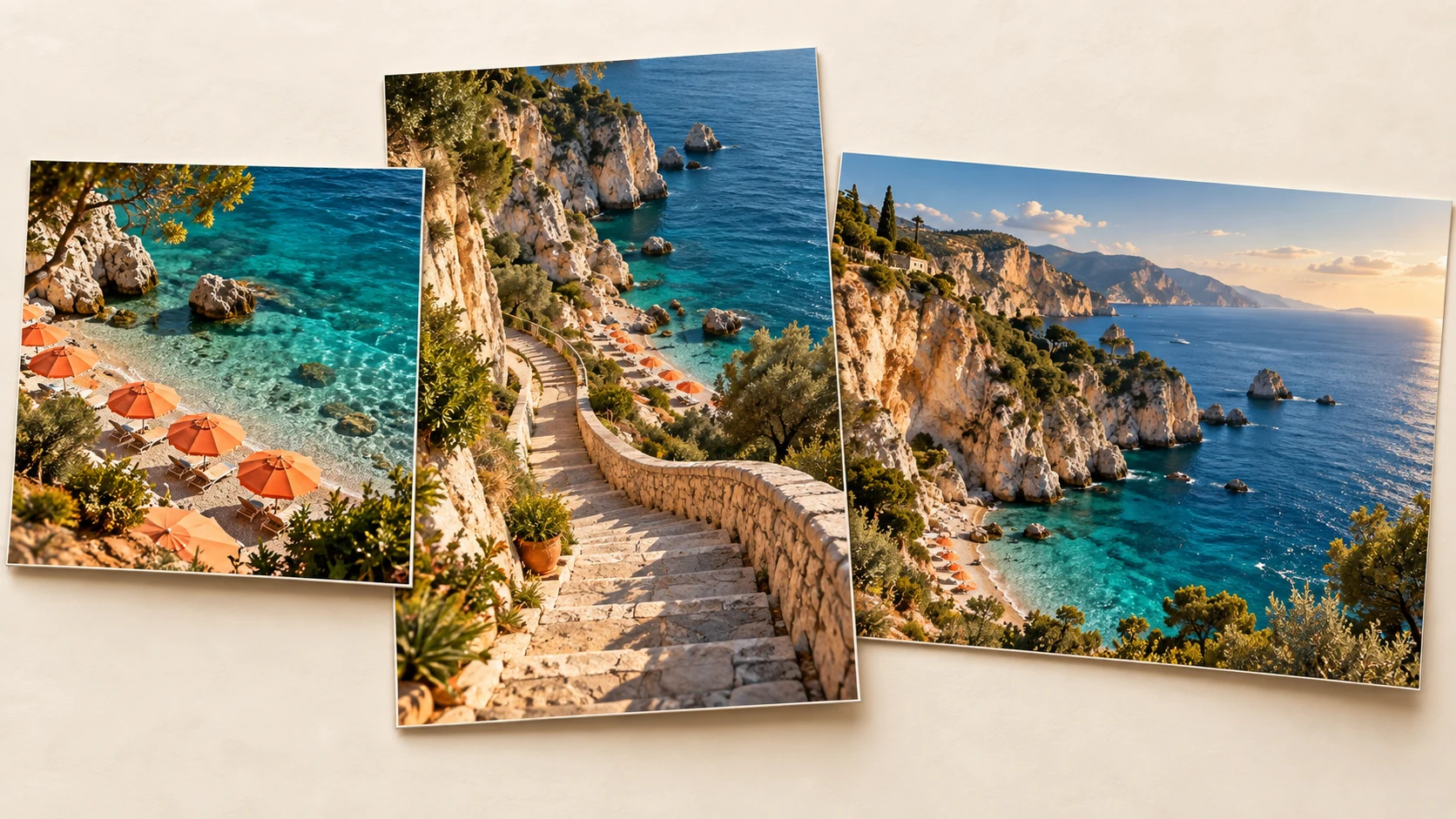
Generate product cutouts, stickers, and graphic elements with transparent backgrounds. Combine them with your own layouts for product pages, presentations, and campaign materials.
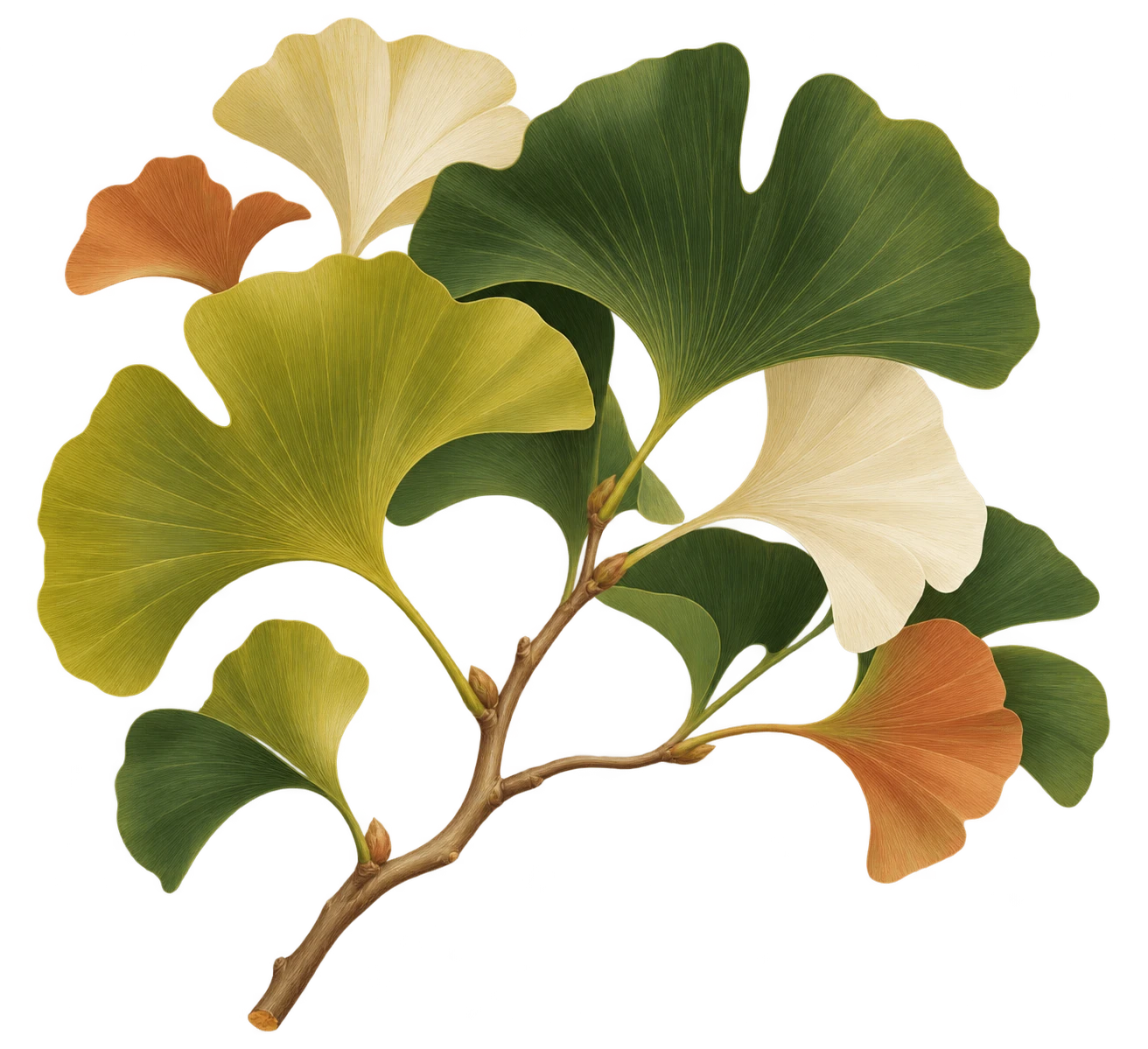
Create vector graphics for icons, logo concepts, and illustrations. Scale the result for different placements and continue working with its paths, shapes, and colors in your design tools.
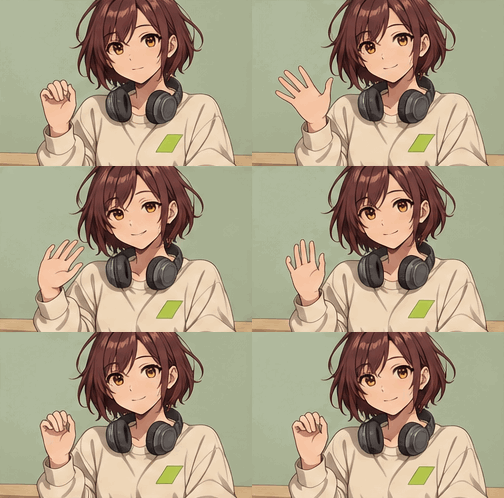
Describe a subject and its movement to create a short animation. Explore a waving mascot, a playful reaction, or a looping visual for your social content.
Create new settings for product imagery and explore seasonal campaign directions. Use reference images to carry recognizable product details across different scenes.
Develop campaign posters, promotional graphics, and ad concepts. Refine headlines, colors, and backgrounds as the creative direction takes shape.
Explore compositions, respond to revision requests, and create graphic elements for larger projects. Use targeted edits to keep developing a promising design.
Create covers, post graphics, and illustrations for recurring content. Extend a visual idea into related images or a short looping animation.
Enter a prompt describing your subject, setting, and style. Add reference images when you want to work from existing visuals.
Select GPT Image 2.6 Flare for quick iteration or GPT Image 2.6 Sunburst for detailed visual work. Adjust the available image settings for your project.
Submit your request, review the completed result, and download your image.
Compare the generations to find the capabilities that fit your project.
| Capability | GPT Image 2 | GPT Image 2.5 | GPT Image 2.6 |
|---|---|---|---|
| Image generation and editing | Generate and edit images with flexible sizes and high-fidelity image inputs | Choose Flare for everyday generation or Sunburst for editing precision | Choose Flare for faster iteration or Sunburst for detailed generation and refinement |
| Model options | GPT Image 2 | GPT Image 2.5 Flare and GPT Image 2.5 Sunburst | GPT Image 2.6 Flare and GPT Image 2.6 Sunburst |
| Creative workflow | Create images from prompts and refine them with image inputs | Explore ideas with Flare or develop detailed edits with Sunburst | Build on those workflows with improved layouts and greater consistency across edits |
| Additional controls and outputs | Text and image inputs for image generation and editing | Separate variants for different generation and editing needs | Adds complexity control, API markup-guided edits, SVG generation, and animated GIF generation |
Choose GPT Image 2.6 when your project calls for targeted revisions, complex compositions, vector graphics, or short looping animations. Use GPT Image 2.6 Flare to explore directions quickly, then choose GPT Image 2.6 Sunburst when fine detail and consistency across edits matter most.
GPT Image 2.6 is an OpenAI model family for generating and editing images from text and image inputs. It includes GPT Image 2.6 Flare and GPT Image 2.6 Sunburst.
GPT Image 2.6 Flare is designed for fast iteration, making it useful for exploring ideas and variations. GPT Image 2.6 Sunburst is designed for detailed visual work and more refined image editing.
GPT Image 2.6 adds complexity control, markup-guided editing through the API, SVG generation, and animated GIF generation. It also improves generation speed, layout quality, and consistency across edits.
Yes. Provide an image and describe the changes you want, such as a new background, a different color, or an adjustment to an object.
Markup gives the model a visual indication of where you want a change. Combine the marked image with a description of the adjustment.
Complexity controls how much planning the model applies before rendering. Quality controls visual detail and fidelity. Higher complexity can help with demanding compositions, but it can also take longer and introduce unwanted changes.
Yes. The model supports transparent image backgrounds, SVG graphics, and animated GIF output. SVG and GIF outputs are available through image generation rather than the image edit endpoint.
Results can vary. Review spelling, text placement, product details, and recurring brand elements before using a finished image.
See Pricing for current ReelDance plans and credits.
Start with an idea or a reference image, then shape it into a visual for your next project.