
GPT Image 2.6 vs GPT Image 2.5: Capabilities and Use Cases

GPT Image 2.6 vs GPT Image 2.5: compare product images, posters, reference edits, GIF and SVG capabilities, then choose a model to create with on ReelDance.
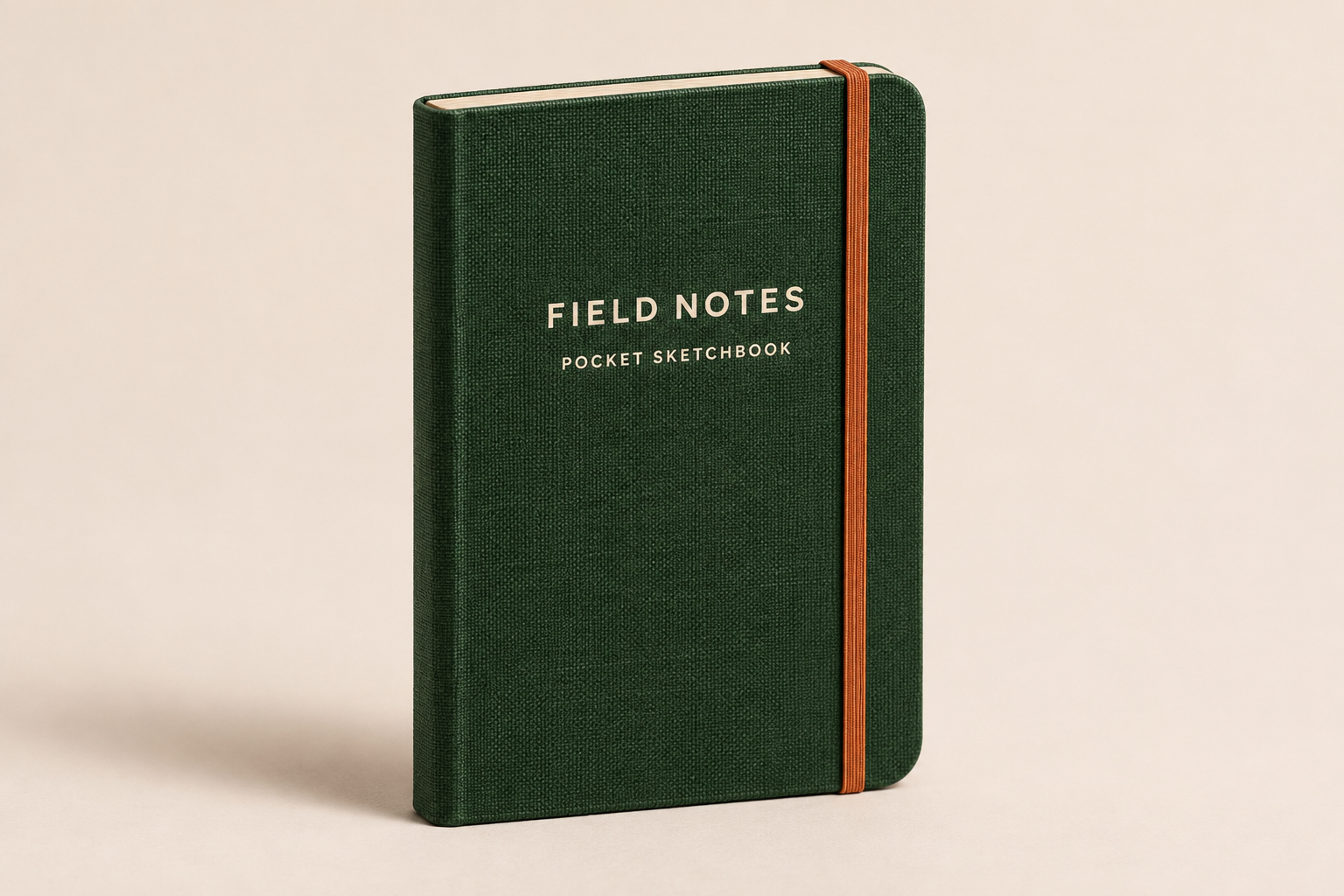
Both GPT Image families can turn a notebook photo into a product scene or put an event headline on a poster. In GPT Image 2.6 vs GPT Image 2.5, the task guides the choice: 2.6 Sunburst for demanding layouts, either family's Flare for exploration. Native GIF and SVG needs point to 2.6.
I'd choose the variant alongside the model family: both have Flare and Sunburst, so the version number alone doesn't settle a composition or editing brief.
GPT Image 2.6 and 2.5 capabilities at a glance
GPT Image 2.5 and 2.6 both create images from text and work with image references. As of November 9, 2026, the meaningful additions in 2.6 include planning control and GIF/SVG output routes. The official image-generation guide sets out these capabilities.
| Capability | GPT Image 2.5 | GPT Image 2.6 |
|---|---|---|
| Variants / emphasis | Flare: exploration; Sunburst: detail | Flare: exploration; Sunburst: detail |
| Product images and posters | Supported | Supported; vendor describes layout improvements |
| References / targeted edits | References, edits, shared markup support | References, edits, shared markup support |
| Transparent assets | PNG / WebP | PNG / WebP |
| Additional planning | No 2.6-style complexity control described | Low, medium or high complexity |
| GIF / SVG outputs | Not documented for 2.5 in the inspected guide | GIF generation/edits; static SVG generation |
The shared capabilities cover many everyday visuals; the required control or output format can decide the family.
OpenAI’s November 4 announcement describes improvements to Flare layouts and Sunburst detail and consistency. Those claims support the recommendations below, but a single-object notebook scene presents a different layout problem from a poster containing several text blocks.
Flare and Sunburst: creative exploration or detailed work
Flare favors quick creative iteration, while Sunburst targets more demanding detail and editing accuracy. The model cards describe that distinction for GPT Image 2.5 Flare and Sunburst, alongside their 2.6 counterparts. The variant matters within either family.
Suppose the notebook scene needs a direction: a warm desk, a plain studio background, or a bold arrangement for a social post. Flare fits that stage, letting you explore composition and color before committing to small details.
Once the composition is settled, attention shifts to the notebook's cover, elastic band and printed title. Sunburst is the more appropriate starting variant for that detailed refinement brief.
I'd write the requirement as an action: arrange the scene, refine the cover, or preserve the reference during an edit. “Make it better” leaves too much open, whereas a specific request gives you something concrete to inspect when the image arrives.
Product images and ecommerce visuals
Both GPT Image families can work from a product reference to create a scene or revise an image. A notebook provides a straightforward example: keep the product recognizable, place it on a desk, and leave room for campaign copy.
GPT Image 2.5 Flare fits everyday concept images, while its Sunburst variant fits a more detailed refinement brief. A product image does not need an elaborate scene; decide how much of the frame should belong to the product before adding props.
GPT Image 2.6 Flare suits product layout exploration, based on OpenAI’s stated improvements. For successive revisions where product consistency matters most, I'd favor 2.6 Sunburst. Judge the delivered asset on the product details you need.
Check the notebook's proportions, corners, binding and cover text, because a convincing desk scene can still contain the wrong product. Compare the image with the reference before placing it in a listing or campaign.
Both families also support transparent output for cutouts. Open the downloaded file against a different background to check transparency; a painted checkerboard is still part of an opaque image.
Create product images with GPT Image 2.5 on ReelDance for a concept or reference-led visual.
Posters, readable text and complex layouts
Start with GPT Image 2.6 Sunburst for a poster with several layout and text requirements. Flare suits earlier layout exploration. Both 2.5 variants can attempt posters, but 2.6 adds a planning control alongside OpenAI's stated layout improvements.
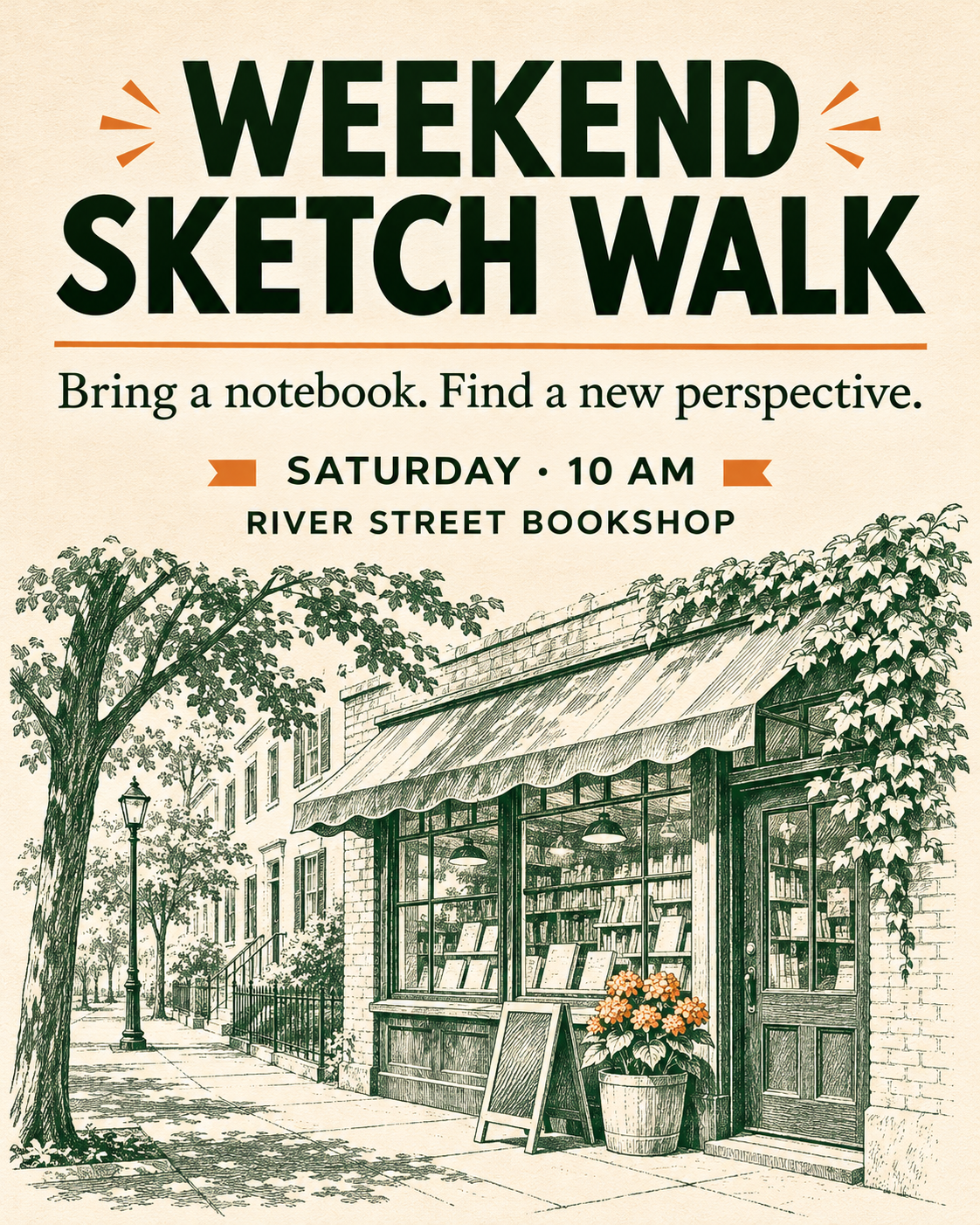
Consider a weekend sketch-walk poster with a short headline, event time, meeting point and a neighborhood illustration. I'd settle the exact text and its intended order before asking for decorative detail. The reader should see the event name before the supporting information.
Planning and rendering quality address different parts of that job, with the 2.6 complexity control governing planning before rendering. Rendering quality is a separate setting; increasing one does not increase the other.
More planning can help a dense arrangement, but it can also add waiting or unwanted changes; a focused edit has less to organize. Check the settings available on the ReelDance model page before building a brief around that control.
Read every word in the final poster, checking the date, spacing and text placement at the size people will actually see. Correct spelling matters more than another decorative element. Leave room for a final text correction before the artwork goes into a campaign.
Reference images and precise edits
GPT Image 2.5 image editing and GPT Image 2.6 editing both support references and markup-guided instructions. Shared markup support cannot decide the family by itself.
The official image-generation guide describes markup using a transparent PNG overlay. It matches the first input image’s dimensions and points to the area involved in the edit. That can make “change this background” clearer than a long description of its position, without promising that every other pixel stays identical.
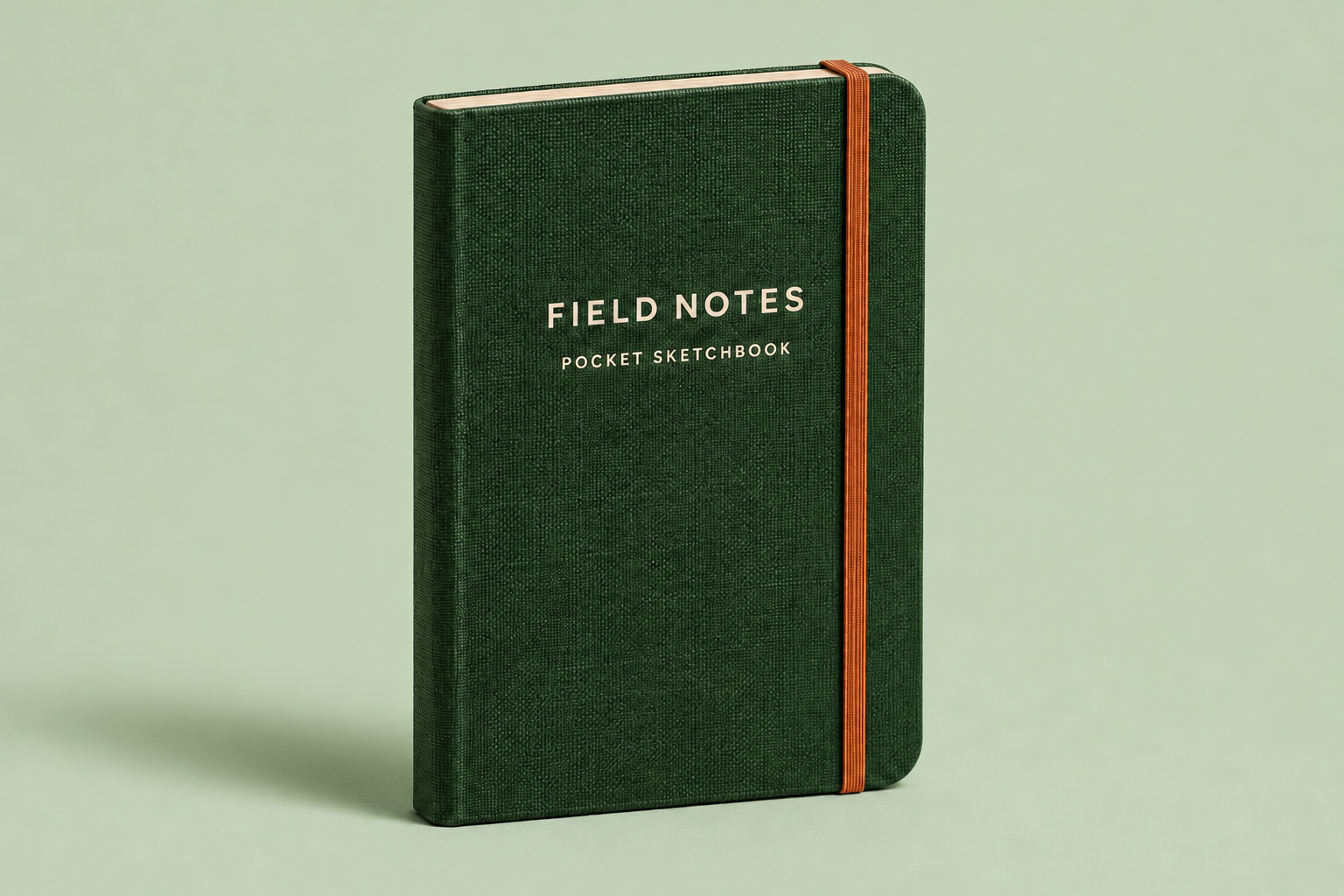
A simple background change to the notebook scene can fit Flare, with the brief asking to retain the product and composition. Sunburst is the starting variant when several precise requirements must survive together. For repeated revisions where consistency matters most, 2.6 is the starting choice.
I'd compare the untouched areas as carefully as the requested change. Look at the cover title, elastic band, product edges and object placement. If strict pixel identity matters, composite the approved edited area into the original, keeping the original file for that purpose.
Explore GPT Image 2.6 on ReelDance for a brief centered on detailed visual refinement. Keep the reference and the requested change specific.
Social graphics, GIF loops and SVG assets
Static social graphics and transparent elements fit both GPT Image families, including campaign cards, product cutouts and sticker elements. The important choice is whether you are exploring the design or refining its details.
For a native GIF loop, choose GPT Image 2.6. The GIF route supports generation and edits, including edits using still references. Think of a small campaign element repeating a short action: a GIF loop serves a different purpose from a video with audio.
Choose GPT Image 2.6 for static SVG generation, too. SVG stores editable vector paths, shapes and colors, making icons and simple illustrations useful targets. I'd favor a clear graphic brief here, with a few shapes and a defined purpose.
The SVG route generates images; it does not edit an uploaded image into vector form or promise a faithful automatic trace or finished logo. The documented output also excludes embedded raster images, scripts and external resources.
Before committing to GIF or SVG delivery on ReelDance, confirm that the required format is available in the model page's current controls. Keep the deliverable specific: a still, a loop or an editable vector graphic.
Choose a model and start creating on ReelDance
Bring a short prompt or a useful reference to the ReelDance page for your chosen model. Flare suits exploratory static artwork in either family. Sunburst handles the detail-focused brief, with 2.6 the starting choice for demanding layouts and consistency across revisions.
Open the corresponding ReelDance model page and choose from the variants and settings available there. Confirm the displayed cost and output choices before submitting. Each model page provides its own creation entry, with sign-up offered to anonymous visitors.
I'd keep the first brief concrete: one notebook scene, one background revision, or one sketch-walk poster. Name what must stay accurate and what may change, then review the result against that brief before using it.
Create with GPT Image 2.5 for everyday image creation and detailed edits. Create with GPT Image 2.6 for demanding layouts and further refinement. For GIF or SVG work, confirm the format controls before proceeding.
Frequently asked questions
Is GPT Image 2.6 always better than GPT Image 2.5?
No. Both families support image creation and editing. GPT Image 2.6 adds documented planning and output capabilities, alongside vendor-described layout and consistency improvements. Choose by the task; those additions do not establish that every 2.6 result beats every 2.5 result.
Should I choose Flare or Sunburst?
Flare suits exploration of compositions, colors and everyday concepts. Sunburst is the starting variant for detailed refinement and precise editing requirements. Both GPT Image 2.5 and 2.6 offer these variants, so choose the variant alongside the family.
Can I use my own product photo as a reference?
Yes. Both families accept image references for creation and editing. Describe what should change and what should remain recognizable. Before using the result, compare product shape, proportions, labels and text with the original photo.
Can an edit leave every other pixel unchanged?
Do not assume it will. References and markup can guide a targeted edit, but other areas may change. If exact pixel preservation matters, keep the original and composite only the approved edited area into it.
Can I create GIF or SVG files with GPT Image 2.6 on ReelDance?
GPT Image 2.6 supports GIF generation and edits, plus static SVG generation. Before planning that delivery on ReelDance, confirm the required format appears in the model page’s current controls. Model capability alone does not establish that specific output path.
About the author
Neo James
Founder of ReelDanceNeo James is the founder of ReelDance and specializes in AI video generation products. He brings years of experience building AIGC products, with a focus on practical creative workflows.