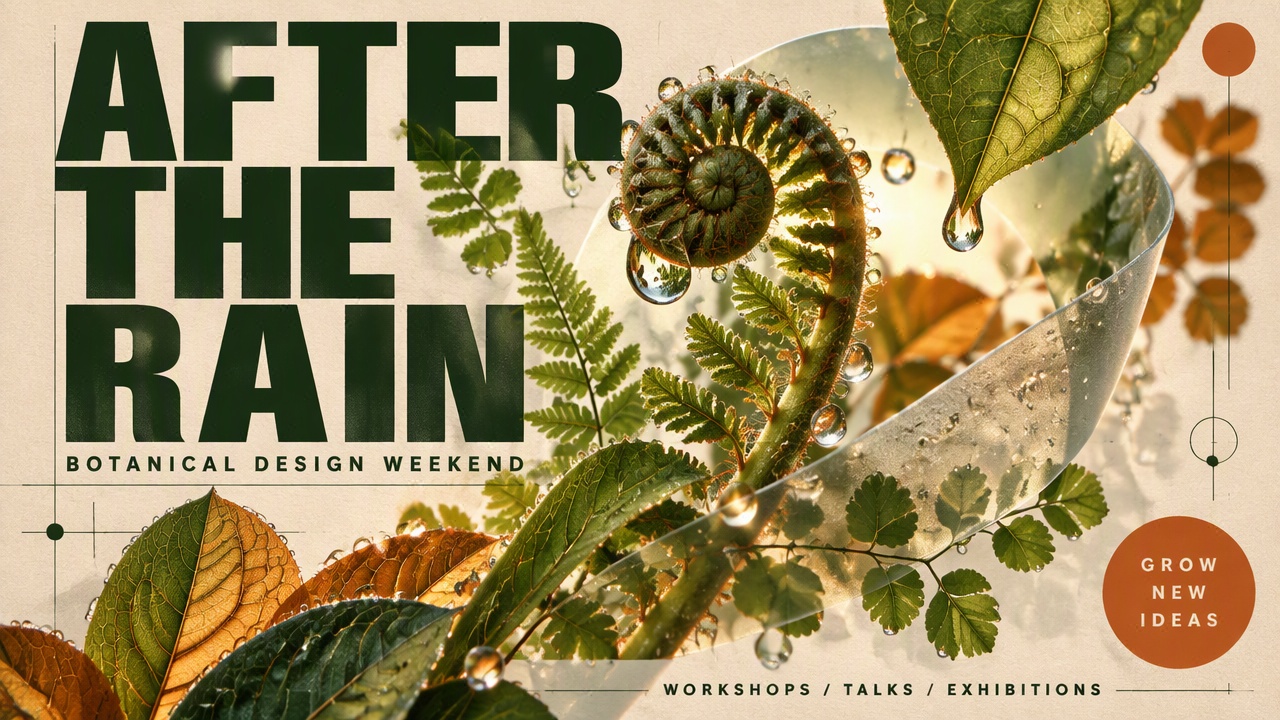
Turn a Brief into a Campaign Poster
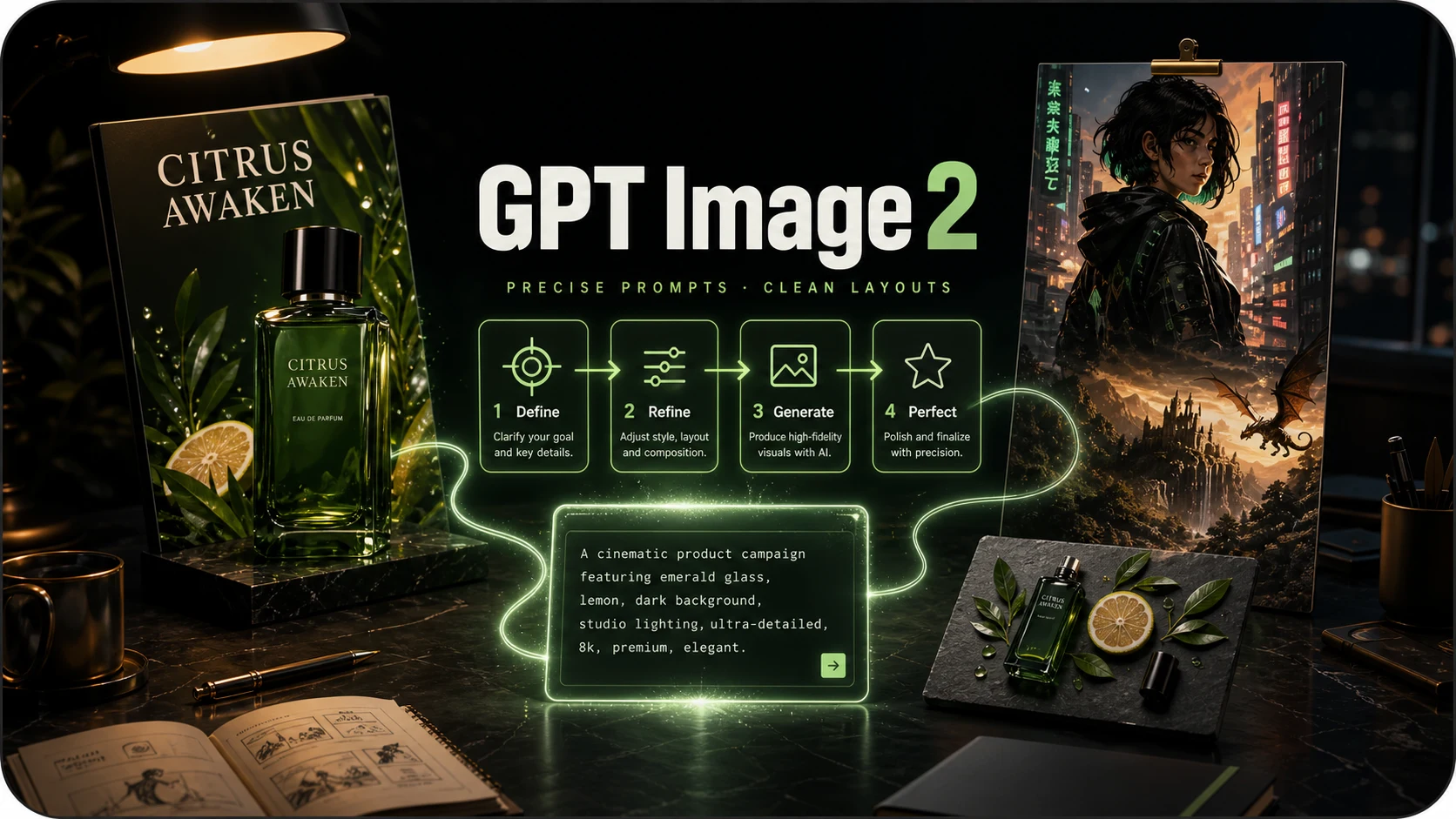
Describe a subject, headline, palette, and layout in one prompt. Explore botanical posters, event artwork, or a new campaign direction before choosing the composition to develop.

Create product scenes, posters, and social graphics from a prompt or reference images. Choose GPT Image 2.5 Flare for everyday creation or GPT Image 2.5 Sunburst for precise image editing.
GPT Image 2.5 turns text and image references into new visuals and image edits. Plan a campaign, develop a product scene, or revise an existing composition. Choose between two variants to match the task.
Describe a subject, headline, palette, and layout in one prompt. Explore botanical posters, event artwork, or a new campaign direction before choosing the composition to develop.
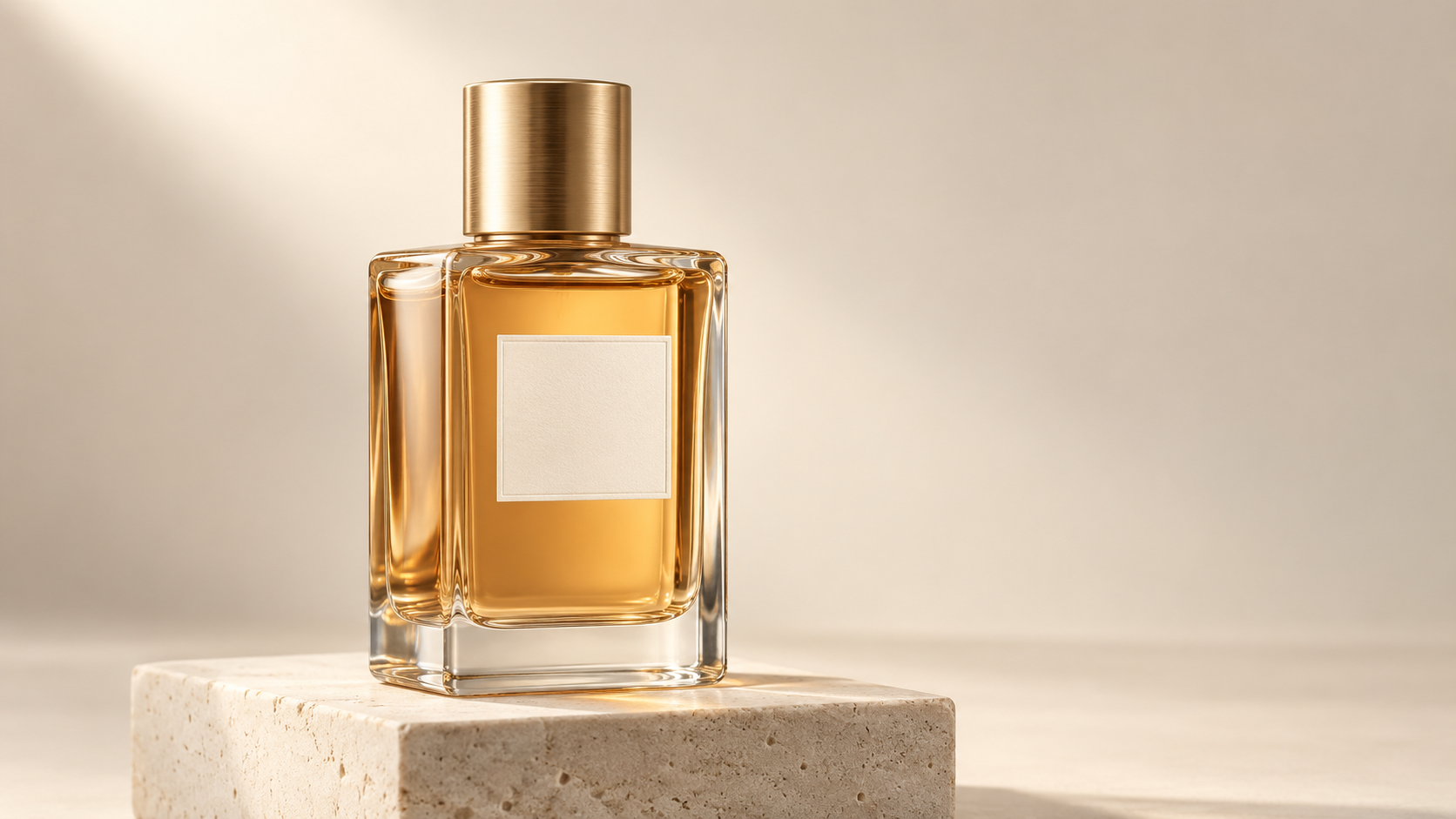
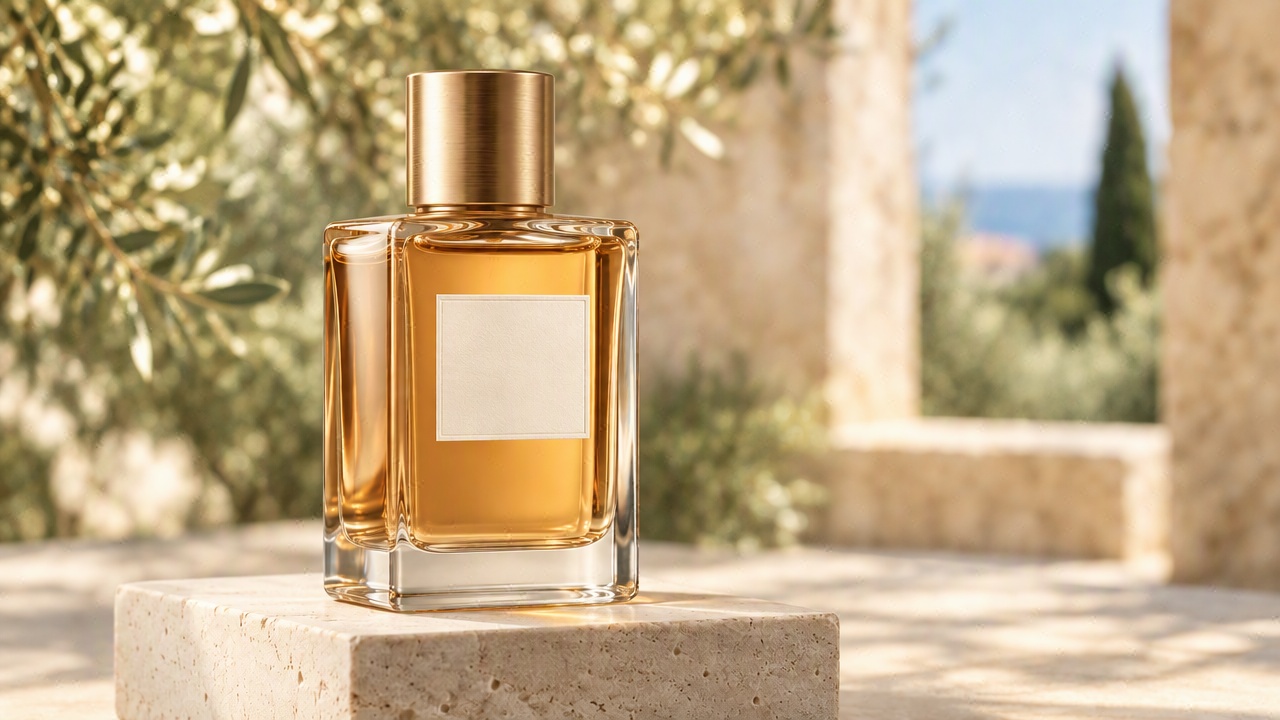
Upload an existing image and describe a change to its setting, colors, or objects. Use GPT Image 2.5 Sunburst when editing precision matters, then review the result against your original.
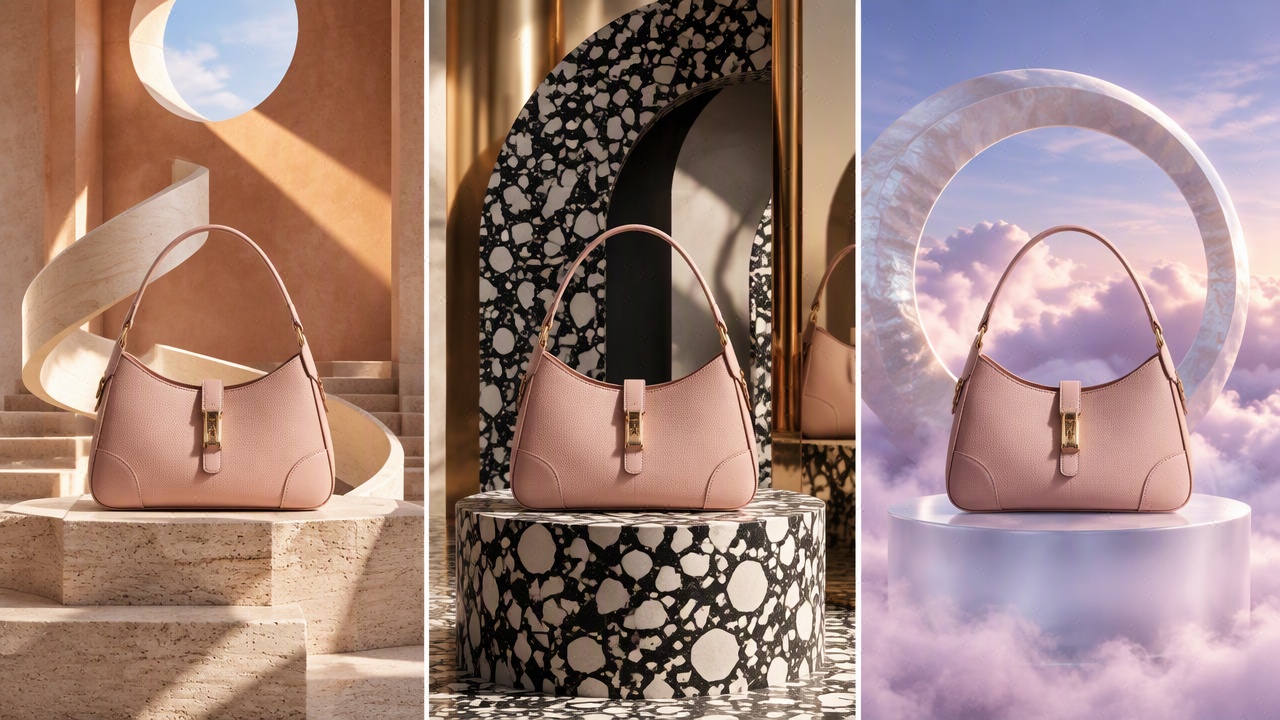
Use a product reference to plan a series of visual concepts. Try a studio setting, architectural backdrop, or seasonal palette, and check the product details before using a finished image.
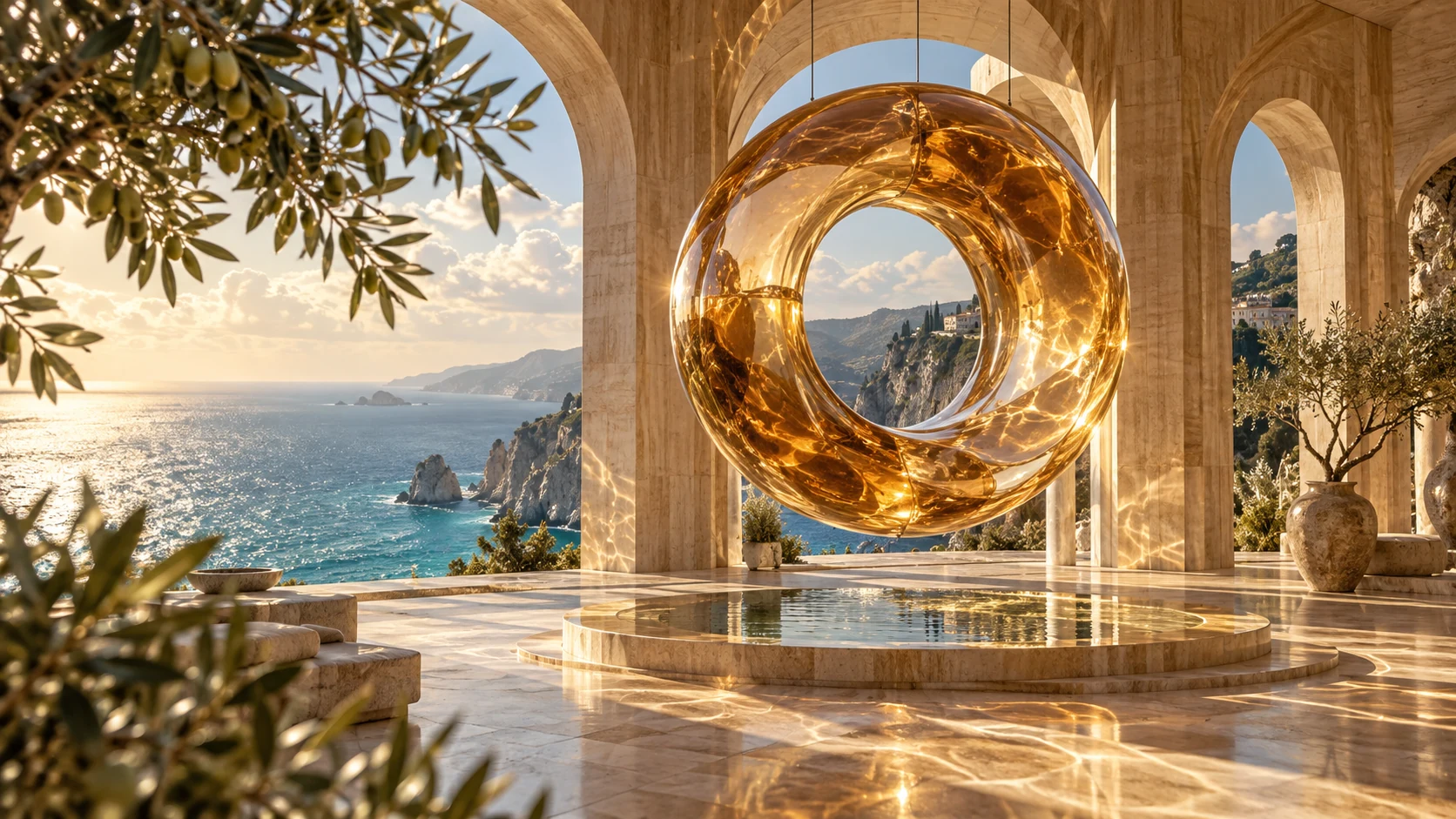
Describe the lighting, materials, and visual style your image needs. Develop a sunlit product scene, a tactile illustration, or an editorial composition while refining the direction through edits.
Plan product scenes for launches, listings, and seasonal promotions. Start from a product reference and explore settings that suit your campaign.
Develop poster and ad concepts around a specific message. Try different compositions before investing in the final layout.
Explore a visual brief, then work through specific revision requests with an existing image as your starting point.
Create covers and recurring social graphics. Describe the subject, palette, and intended layout for each new post.
Enter your subject, setting, and style. Upload reference images when you want to develop an existing visual or request an edit.
Select GPT Image 2.5 Flare for everyday creation or GPT Image 2.5 Sunburst for precise editing. Choose an available quality level and review the credit quote.
Submit your request and wait for the completed result. Review text and product details, then download your image or refine your instructions.
Compare the generations to find the capabilities that fit your project.
| Capability | GPT Image 2 | GPT Image 2.5 | GPT Image 2.6 |
|---|---|---|---|
| Model options | GPT Image 2 | GPT Image 2.5 Flare and GPT Image 2.5 Sunburst | GPT Image 2.6 Flare and GPT Image 2.6 Sunburst |
| Core workflow | Generate and edit images from text and image inputs | Everyday creation with Flare; precision-focused editing with Sunburst | Generate and refine images with the newer Flare and Sunburst variants |
| Choosing a model | Continue a workflow built around GPT Image 2 | Choose between everyday iteration and detailed revisions | Explore the newer generation for demanding compositions and edits |
| Creative outputs | Images from prompts and reference images | Images for everyday creation and careful revisions | Images, SVG graphics, and animated GIFs |
Use GPT Image 2.5 Flare to explore a campaign direction, then choose GPT Image 2.5 Sunburst for a detailed revision. Start with a prompt or an image you want to develop.
GPT Image 2.5 is an OpenAI image model family with Flare and Sunburst variants. Both accept text and image inputs for image creation and editing.
Flare emphasizes fast everyday image creation. Sunburst is designed for detailed visual work and workflows where editing precision matters most.
Yes. Upload your reference image and describe the change you want. Review the result to check that the details you intended to keep are still correct.
The generator offers Low, Medium, High, XHigh, and Max for GPT Image 2.5. Your selected quality and reference images affect the credit quote shown before submission.
Yes. ReelDance accepts up to 16 reference images for either GPT Image 2.5 variant. Explain the role of each reference in your prompt.
Results can vary. Check spelling, placement, proportions, and product details before using an image in a campaign or publishing it.
GPT Image 2.5 offers Flare and Sunburst for image creation and editing. GPT Image 2.6 introduces additional capabilities including complexity control, API markup-guided edits, SVG graphics, and animated GIFs.
Review the credit quote in the generator before submitting. Visit Pricing for the current ReelDance plans and credit allowances.
Start with an idea or a reference image, then shape it into a visual for your next project.